
How to Cut Specific Fragments from Long Videos for TikTok
Step 1: Upload Your Long Horizontal Video
Start by uploading your long horizontal video to Vyexa’s web app at vyexa.net or use the Telegram bot for mobile convenience. The platform supports various video formats and sizes, making it easy to get started without additional software. After uploading, Vyexa automatically prepares your video for editing and conversion into vertical clips.
Step 2: Choose Manual Mode for Precise Fragment Selection
Vyexa offers an AI auto-detection feature for viral moments, but to cut specific fragments, switch to Manual mode. This mode lets you split the source video into a user-specified number of parts or cut a particular segment by entering exact timecodes. This control ensures you select the exact clip you want to share on TikTok.
Step 3: Set Timecodes to Define Your Clip
In Manual mode, enter the start and end timecodes for the fragment you want to extract. For example, if you want a 15-second clip starting at 2:30, input 02:30 as the start and 02:45 as the end. Vyexa will then trim the video accordingly, creating a focused clip that highlights your chosen moment.
Step 4: Customize Your Vertical Clip with Clip Constructor
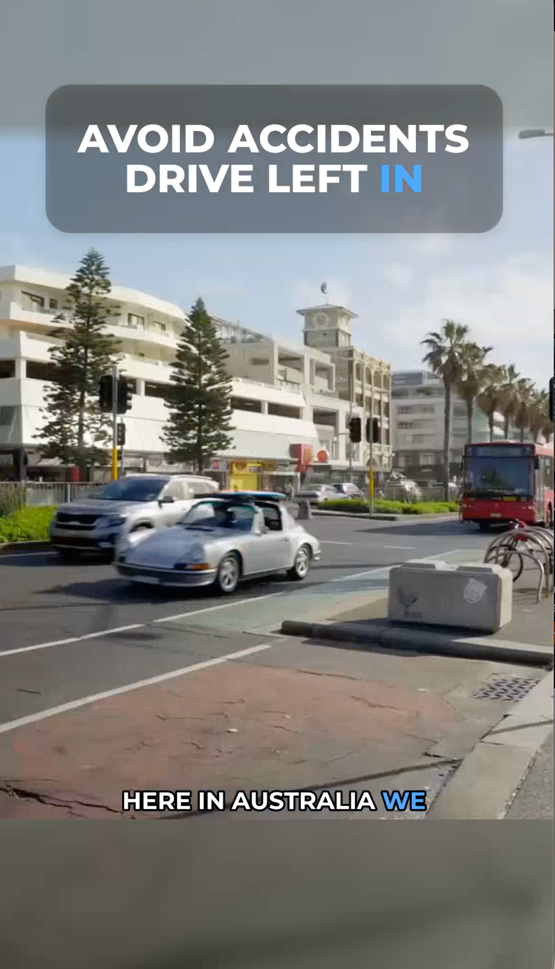
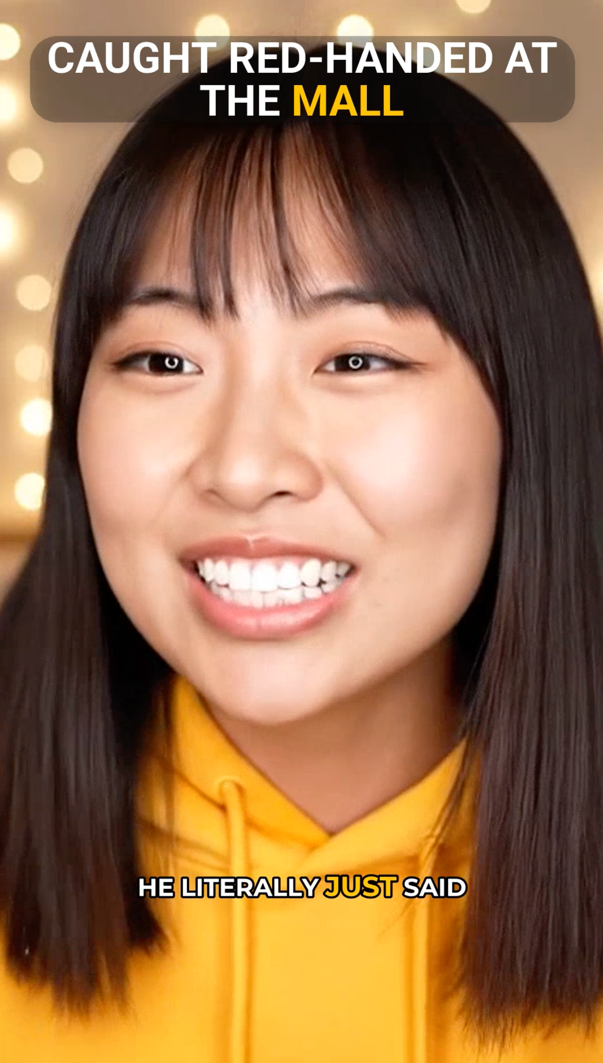
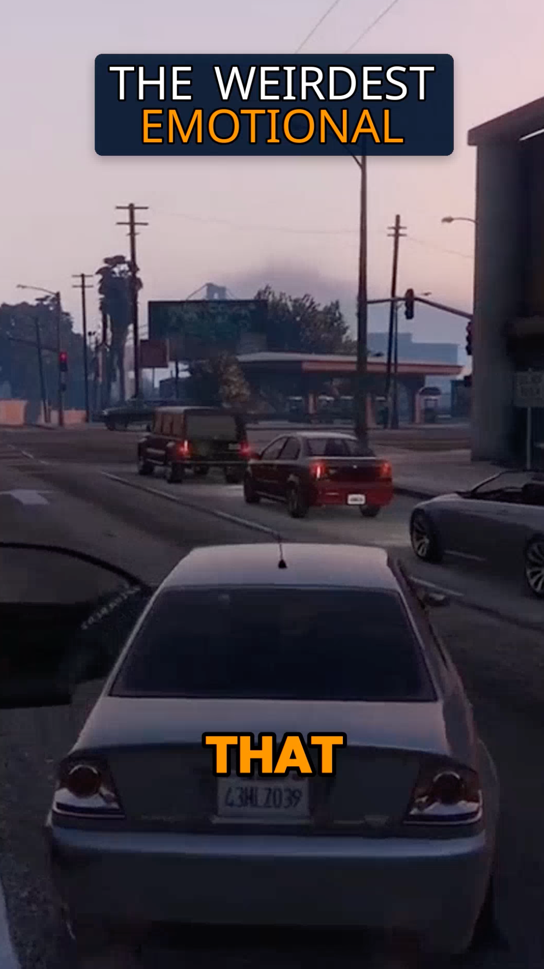
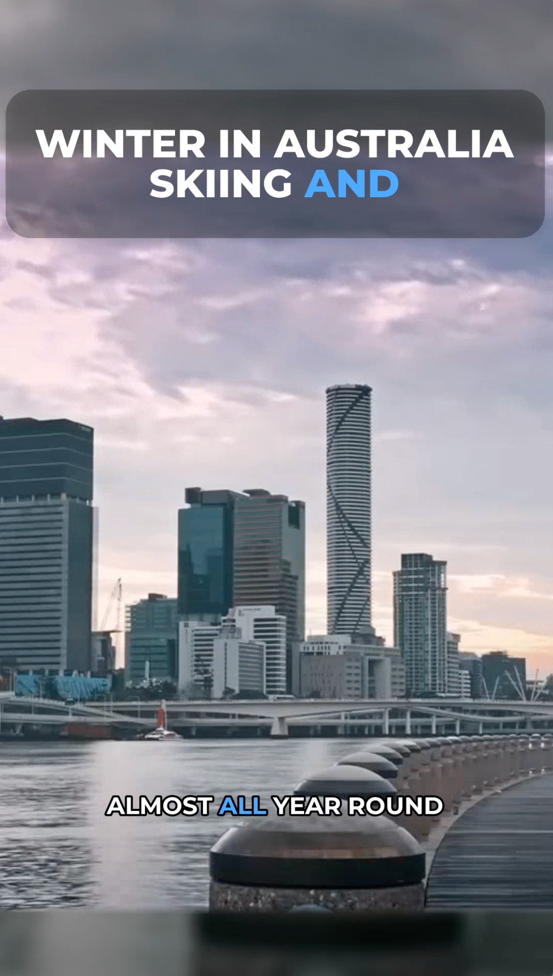
Once your fragment is selected, use Vyexa’s Clip Constructor to customize the vertical 9:16 clip. Adjust font styles, layout/frame size (Auto, Full, 70%, 50%, 40%, Split, Stream), title and subtitle styles, and highlight colors. You can also enable or disable the auto-generated title overlay and position subtitles as needed. This customization helps your clip stand out on TikTok and other short-form platforms.
Why creators use Vyexa
More clips. Less editing. Steady growth.
Create more content
Turn one video into 10-30 clips you can publish across platforms.

Save time
Skip manual editing and get ready-to-post clips automatically.
Grow faster
Keep daily short-form output and stay consistent with your audience.
Step 5: Add Subtitles and Highlights
Vyexa automatically generates burned-in subtitles in multiple languages, which is useful for accessibility and engagement on TikTok. You can also choose to highlight key words in titles and subtitles with colors to emphasize important points. This feature is available on the Clip Setup page and helps make your clip more eye-catching and easier to follow.
Step 6: Preview and Download Your TikTok-Ready Clip
After setting up your clip, preview it directly within Vyexa to ensure it looks perfect. Check the framing, subtitles, and highlights before downloading. Vyexa allows you to download the final vertical clip in a format optimized for TikTok, YouTube Shorts, Instagram Reels, and Facebook Reels, so you can post immediately without extra editing.
FAQ
Can I use Vyexa to cut multiple clips from one long video?
Yes, Vyexa’s Manual mode lets you split a long video into a specified number of parts, allowing you to create multiple clips from a single source video.
Does Vyexa support adding subtitles automatically?
Vyexa auto-generates burned-in subtitles in multiple languages, which you can customize in style and position to fit your clip’s design.
Is there a limit to how many clips I can create for free?
New and beginner creators can generate up to 20 free shorts per month with Vyexa’s web app. The quota resets monthly, and paid plans are available for higher usage.
Can I customize the look of titles and subtitles on my clips?
Yes, Vyexa’s Clip Constructor allows you to customize font, layout, title style, subtitle style and position, and highlight colors with a live preview.
Do I need to install any software to use Vyexa?
No installation is required. Vyexa is accessible as a web app and a Telegram bot, making it easy to use on desktop and mobile devices.
Free plan available · Paid plans from $15/mo · See pricing